For free AI tools that turn PDF input boxes into fillable fields, try
Instafill.ai, PDFgear, or LightPDF,
which use AI to automatically detect and add text, checkbox, and
signature fields to static PDFs, letting you download them as
interactive forms, though some free tiers might have limits.
Top Free AI Options:
Instafill.ai:
Uses AI to scan and map form fields (like name, date, signature) onto
flat PDFs, creating interactive ones with text, checkboxes, and
signature fields automatically.
PDFgear:
Offers a free online tool to add various form fields (text boxes,
checkboxes, signatures) and customize them before downloading the
fillable PDF.
LightPDF: Provides free online tools, including AI features, to convert and edit PDFs into fillable formats.
How They Work (General Steps):
Upload: You upload your non-fillable (flat) PDF document to the tool's website.
AI Analysis: The AI scans the PDF, looking for field labels (like "Name," "Email") and layout patterns (underlines, boxes).
Field Insertion: It automatically places interactive fields (text boxes, checkboxes, radio buttons, signature spots) in the right places.
Customize & Download: You can review and adjust the fields (size, type, required status) before downloading your new, ready-to-use fillable PDF.
While
many offer robust free tiers, always check their specific limits on
pages or features, as advanced AI functions might require payment.
To automatically convert audio from your Ubuntu computer's mixer into text, you need two things: a way to
route the system's audio output as an input and a speech-to-text (STT) application configured for real-time transcription.
Step 1: Route System Audio as an Input
You
need to make the audio that's playing through your speakers (the "mixer
output") appear as a microphone input source. This can be done using pavucontrol (PulseAudio Volume Control).
Install pavucontrol if you don't have it:
bash
sudo apt install pavucontrol
Open PulseAudio Volume Control from your applications menu.
Start the sound you want to transcribe (e.g., a YouTube video, a meeting, etc.).
In pavucontrol, go to the Recording tab.
Find
the application that is producing the sound in the list. Change the
input source for that application from a physical microphone to "Monitor of Internal Audio Analog Stereo" (the exact name may vary slightly depending on your system).
Go to the Input Devices tab and make sure the "Monitor of..." source is unmuted and the level meter is reacting to the sound playing.
Step 2: Use a Speech-to-Text Application
Once
the audio is routed, you can use an application to transcribe the new
input source. The most accurate and powerful open-source tool currently
available for local processing is OpenAI's Whisper AI.
Option A: Using Google Docs (Easiest, requires internet)
A simple, browser-based method uses Google Docs' built-in voice typing feature.
Open Google Docs in your web browser.
Go to Tools > Voice typing. A microphone icon will appear.
Click
the microphone icon and ensure your browser has permission to access
the "Monitor of Internal Audio" input (you may need to select it in your
browser's site settings or Ubuntu's system sound settings if it
defaults to your actual microphone).
Play the audio from your mixer, and the text should appear in the document in real time.
Option B: Using OpenAI Whisper (Offline, more complex setup)
For an offline, more private solution, you can use the command-line version of Whisper.
Use a specific script for real-time transcription
that captures the default audio input and processes it (the setup for a
command-line real-time script requires additional steps beyond batch
file processing). A simple script using libraries like sounddevice and numpy can be built to capture from your default system input (which you've now set to the mixer output).
Alternatively, you can record the audio output to a file first using a tool like OBS or ffmpeg, and then run the Whisper command on the saved audio file:
whisper your_audio_file.wav --model small --output_format txt
" will show in buffers list
let g:bito_buffer_name_prefix = get(g:, 'bito_buffer_name_prefix', 'bito_history_')

" if your bito cli is not sys command, you should change the bito path
let g:vim_bito_path = get(g:, 'vim_bito_path', "bito")

" can change all the result of boti ,like: "Please translate the comment into chinses", "Please write the comment in chinses
let g:vim_bito_prompt_append = get(g:, 'vim_bito_prompt_append', "")
Usage
BitoAiGenerate
BitoAiGenerateUnit
BitoAiGenerateComment
BitoAiCheck
BitoAiCheckSecurity
BitoAiCheckStyle
BitoAiCheckPerformance
BitoAiReadable
BitoAiExplain
Custom
if !exists("g:vim_bito_prompt_{command}")
    let g:vim_bito_prompt_{command} = "your prompt"
endif

" if should select code
command! -range -nargs=0 BitoAi{Command} :call BitoAiSelected('{command}')
should replace the {command} with your self
Optional Hotkeys
Add these to your vimrc using
vim ~/.vimrc
call plug#begin('~/.vim/plugged')
Plug '~/Desktop/vim-bitoai'
call plug#end()

" Bito Vim Integration Key Bindings

" Generate code
xnoremap G :<C-U>BitoAiGenerate<CR>

" Generate code for a selected range in 'unit' mode
xnoremap U :<C-U>BitoAiGenerateUnit<CR>

" Generate code comments for a selected range
xnoremap C :<C-U>BitoAiGenerateComment<CR>

" Check code for potential issues for a selected range
xnoremap K :<C-U>BitoAiCheck<CR>

" Check code security for a selected range
xnoremap X :<C-U>BitoAiCheckSecurity<CR>

" Check code style for a selected range
xnoremap S :<C-U>BitoAiCheckStyle<CR>

" Check code performance for a selected range
xnoremap P :<C-U>BitoAiCheckPerformance<CR>

" Make code more readable for a selected range
xnoremap R :<C-U>BitoAiReadable<CR>

" Explain
xnoremap E :<C-U>BitoAiExplain<CR>
Example Usage of HotKeys:
Open a file: vim create_doc_overview.sh
Press v to enter visual mode.
Highlight text using the arrow keys
With Caps Lock ON, press E to explain the highlighted code.
We are excited to announce that one of our users has developed a dedicated Vim and Neovim plugin for Bito, integrating it seamlessly with your favorite code editor. This plugin enhances your coding experience by leveraging the power of Bito's AI capabilities directly within Vim and Neovim.
Installation
To get started with "vim-bitoai," follow these steps:
Step 1: Install Bito CLI
Make sure you have Bito CLI installed on your system. If you haven't installed it, you can find detailed instructions in the Bito CLI repository at https://github.com/gitbito/CLI.
Step 2: Install the Plugin
Open your terminal and navigate to your Vim or Neovim plugin directory. Then, clone the "vim-bitoai" repository using the following command:
Open your Vim or Neovim configuration file and add the following lines:
" Vim PlugPlug 'zhenyangze/vim-bitoai'"NeoBundleNewBundle'zhenyangze/vim-bitoai'" VundlePlugin 'zhenyangze/vim-bitoai'
Save the configuration file and restart your editor or run :source ~/.vimrc (for Vim) or :source ~/.config/nvim/init.vim (for Neovim) to load the changes.
Step 4: Verify the Installation
Open Vim or Neovim, and you should now have the "vim-bitoai" plugin installed and ready to use.
Usage
You can use its powerful features once you have installed the "vim-bitoai" plugin. Here are some of the available commands:
BitoAiGenerate: Generates code based on a given prompt.
BitoAiGenerateUnit: Generates unit test code for the selected code block.
BitoAiGenerateComment: Generates comments for methods, explaining parameters and output.
BitoAiCheck: Performs a check for potential issues in the code and suggests improvements.
BitoAiCheckSecurity: Checks the code for security issues and provides recommendations.
BitoAiCheckStyle: Checks the code for style issues and suggests style improvements.
BitoAiCheckPerformance: Analyzes the code for performance issues and suggests optimizations.
BitoAiReadable: Organizes the code to enhance readability and maintainability.
BitoAiExplain: Generates an explanation for the selected code.
To execute a command, follow these steps:
Open a file in Vim or Neovim that you want to work on.
Select the code block you want to act on. You can use visual mode or manually specify the range using line numbers.
Execute the desired command by running the corresponding command in command mode. For example, to generate code based on a prompt, use the : BitoAiGenerate command.
Note: Some commands may prompt you for additional information or options.
The plugin will communicate with the Bito CLI and execute the command, providing the output directly within your editor.
By leveraging the "vim-bitoai" plugin, you can directly harness the power of Bito's AI capabilities within your favorite Vim or Neovim editor. This integration lets you streamline your software development process, saving time and effort in repetitive tasks and promoting efficient coding practices.
Customization
The "vim-bitoai" plugin also offers customization options tailored to your specific needs. Here are a few variables you can configure in your Vim or Neovim configuration file:
g:bito_buffer_name_prefix: Sets the prefix for the buffer name in the Bito history. By default, it is set to 'bito_history_'.
g:vim_bito_path: Specifies the path to the Bito CLI executable. If the Bito CLI is not in your system's command path, you can provide the full path to the executable.
g:vim_bito_prompt_{command}: Allows you to customize the prompt for a specific command. Replace {command} with the desired command.
To define a custom prompt, add the following line to your Vim or Neovim configuration file and replace your prompt with the desired prompt text:
Remember to restart your editor or run the appropriate command to load the changes.
We encourage you to explore the "vim-bitoai" plugin and experience the benefits of seamless integration between Bito and your Vim or Neovim editor. Feel free to contribute to the repository or provide feedback to help us further improve this plugin and enhance your coding experience.
Here are the steps I did to enable VirtualBox to work properly in
Ubuntu with UEFI Secure Boot fully enabled*. The problem is the
requirement that all kernel modules must be signed by a key trusted by
the UEFI system, otherwise loading will fail. Ubuntu does not sign
the third party vbox* kernel modules, but rather gives the user the
option to disable Secure Boot upon installation of the virtualbox
package. I could do that, but then I would see an annoying “Booting in
insecure mode” message every time the machine starts, and also the dual
boot Windows 10 installation I have would not function.
*Ubuntu 16.04 on a Dell Latitude E7440 with BIOS A18, and with a dual boot Windows 10 installation.
Steps to make it work, specifically for Ubuntu/Debian
Install the virtualbox package. If the installation detects that
Secure Boot is enabled, you will be presented with the issue at hand and
given the option to disable Secure Boot. Choose “No”.
Create a personal public/private RSA key pair which will be used to
sign kernel modules. I chose to use the root account and the directory /root/module-signing/ to store all things related to signing kernel modules.
Use the MOK (“Machine Owner Key”) utility to import the public key
so that it can be trusted by the system. This is a two step process
where the key is first imported, and then later must be enrolled when
the machine is booted the next time. A simple password is good enough,
as it is only for temporary use.
Reboot the machine. When the bootloader starts, the MOK manager EFI
utility should automatically start. It will ask for parts of the
password supplied in step 3. Choose to “Enroll MOK”, then you
should see the key imported in step 3. Complete the enrollment steps,
then continue with the boot. The Linux kernel will log the keys that are
loaded, and you should be able to see your own key with the command: dmesg|grep 'EFI: Loaded cert'
Using a signing utility shippped with the kernel build files, sign
all the VirtualBox modules using the private MOK key generated in step
2. I put this in a small script /root/module-signing/sign-vbox-modules, so it can be easily run when new kernels are installed as part of regular updates:
#!/bin/bash

for modfile in $(dirname $(modinfo -n vboxdrv))/*.ko; do
  echo "Signing $modfile"
  /usr/src/linux-headers-$(uname -r)/scripts/sign-file sha256 \
                                /root/module-signing/MOK.priv \
                                /root/module-signing/MOK.der "$modfile"
done
Run the script from step 5 as root. You will need to run the signing
script every time a new kernel update is installed, since this will
cause a rebuild of the third party VirtualBox modules. Use the script
only after the new kernel has been booted, since it relies on modinfo -n and uname -r to tell which kernel version to sign for.
Load vboxdrv module and fire up VirtualBox:
# modprobe vboxdrv
The procedure can also be used to sign other third party kernel
modules, like the nvidia graphics drivers, if so is required. (I have
not tested that myself.)
1. Convert an Audio File into Text (not live, not automatically save it into a text file)
Whisper AI is an advanced automatic speech recognition (ASR) model developed by OpenAI
that can transcribe audio into text with impressive accuracy and
supports multiple languages. While Whisper AI is primarily designed for
batch processing, it can be configured for real-time speech-to-text
transcription on Linux.
In this guide, we will go through the step-by-step process of installing, configuring, and running Whisper AI for live transcription on a Linux system.
What is Whisper AI?
Whisper AI
is an open-source speech recognition model trained on a vast dataset of
audio recordings and it is based on a deep-learning architecture that
enables it to:
Transcribe speech in multiple languages.
Handle accents and background noise efficiently.
Perform translation of spoken language into English.
Since it is designed for high-accuracy transcription, it is widely used in:
Live transcription services (e.g., for accessibility).
Voice assistants and automation.
Transcribing recorded audio files.
By default, Whisper AI is not optimized for
real-time processing. However, with some additional tools, it can
process live audio streams for immediate transcription.
Whisper AI System Requirements
Before running Whisper AI on Linux, ensure your system meets the following requirements:
Hardware Requirements:
CPU: A multi-core processor (Intel/AMD).
RAM: At least 8GB (16GB or more is recommended).
GPU: NVIDIA GPU with CUDA (optional but speeds up processing significantly).
Storage: Minimum 10GB of free disk space for models and dependencies.
Software Requirements:
A Linux distribution such as Ubuntu, Debian, Arch, Fedora, etc.
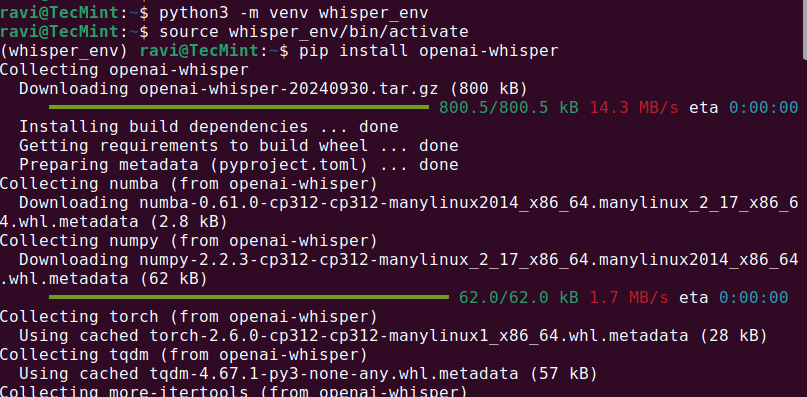
Once the required dependencies are installed, you can proceed to install Whisper AI in a virtual environment that allows you to install Python packages without affecting system packages.
Once the installation is complete, check if Whisper AI was installed correctly by running.
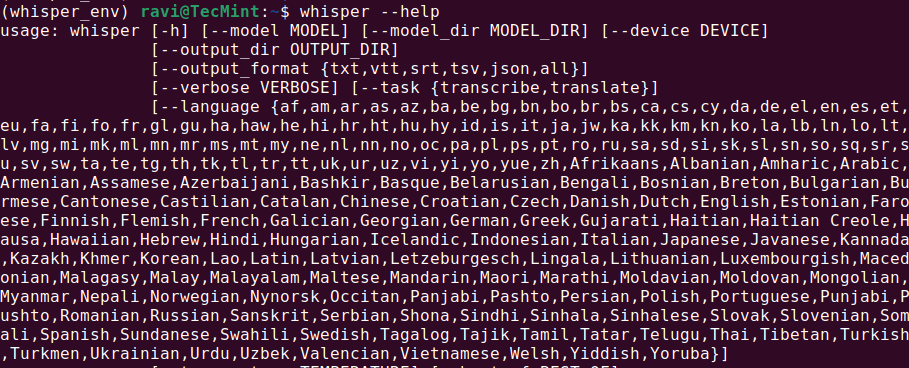
whisper --help
This should display a help menu with available commands and options, which means Whisper AI is installed and ready to use.
Check Whisper AI on Linux
Step 3: Running Whisper AI in Linux
Once Whisper AI is installed, you can start transcribing audio files using different commands.
Transcribing an Audio File
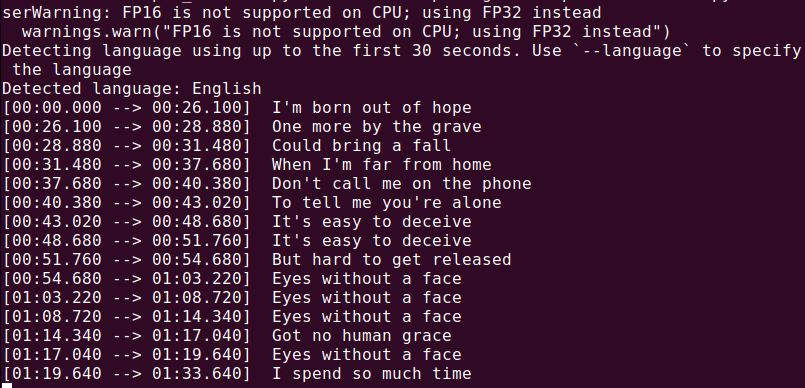
To transcribe an audio file (audio.mp3), run:
whisper audio.mp3
Whisper will process the file and generate a transcript in text format.
Transcribing an Audio File
2. Convert Audio Files into Text Files in Batches (not live)
This is **batch (file-based)** transcription, not **live dictation**.
Auto-save text to Markdown / notes, please. Thank you! ------------------------------------------------------------------------------
You got it 👍
Below is a **NOT LIVE** but **clean, practical Whisper setup that automatically saves transcripts as well-formatted Markdown notes**. This works great for meetings, study notes, or voice journals.
I’ll give you:
1. 📁 Folder-based auto-transcription 2. 📝 Markdown formatting (title, timestamps, sections) 3. ⚙️ A reusable script you can customize
1️⃣ **Folder Structure (recommended)** whisper_notes/ ├── audio/ # put .wav / .mp3 here ├── notes/ # Markdown files auto-saved here └── transcribe.py
Create it:
mkdir -p ~/whisper_notes/audio ~/whisper_notes/notes cd ~/whisper_notes
2️⃣ **Install requirements (once)**
pip install openai-whisper torch
(You already installed Whisper, this just ensures dependencies.)
3️⃣ **Create the auto-Markdown script**
nano transcribe.py
Paste **this full script:**
import whisper from pathlib import Path from datetime import datetime
AUDIO_DIR = Path("audio") NOTES_DIR = Path("notes") MODEL_NAME = "medium" # change to small if CPU is slow
NOTES_DIR.mkdir(exist_ok=True)
model = whisper.load_model(MODEL_NAME)
def seconds_to_mmss(seconds): m = int(seconds // 60) s = int(seconds % 60) return f"{m:02d}:{s:02d}"
for audio_file in AUDIO_DIR.iterdir(): if audio_file.suffix.lower() not in {".wav", ".mp3", ".m4a", ".flac"}: continue
print(f"Transcribing: {audio_file.name}") result = model.transcribe(audio_file, fp16=False)
title = audio_file.stem.replace("_", " ").title() now = datetime.now().strftime("%Y-%m-%d %H:%M")
- **[00:00]** Good afternoon everyone, let's get started. - **[00:32]** The first topic is system migration. - **[02:15]** We expect completion by next Friday.
Just tell me what you want next — this setup is a solid base 👌
I got the following error message -
' Traceback (most recent call last): File "/home/shermanchen/dev/whisperai/whisper_notes/transcribe.py", line 23, in <module> result = model.transcribe(audio_file, fp16=False) ^^^^^^^^^^^^^^^^^^^^^^^^^^^^^^^^^^^^^^^^ File "/home/shermanchen/dev/whisperai/whisper_env/lib/python3.12/site-packages/whisper/transcribe.py", line 139, in transcribe mel = log_mel_spectrogram(audio, model.dims.n_mels, padding=N_SAMPLES) ^^^^^^^^^^^^^^^^^^^^^^^^^^^^^^^^^^^^^^^^^^^^^^^^^^^^^^^^^^^^^^^^ File "/home/shermanchen/dev/whisperai/whisper_env/lib/python3.12/site-packages/whisper/audio.py", line 141, in log_mel_spectrogram audio = torch.from_numpy(audio) ^^^^^^^^^^^^^^^^^^^^^^^ TypeError: expected np.ndarray (got PosixPath) '
Great, thanks for pasting the full traceback — this is a **clear and easy fix** 👍 You’re actually **very close**.
✅ **What went wrong (exactly)**
This line caused it:
result = model.transcribe(audio_file, fp16=False)
`audio_file` is a Path object (`PosixPath`), but **Whisper expects either**: - a string path (`str`) - or a **NumPy array**
So Whisper tried to treat the `Path` like audio data → 💥 error.
✅ **The fix (one-line change)**
Convert the `Path` to a string.
**Edit your script:**
nano transcribe.py
**Change this line:**
result = model.transcribe(audio_file, fp16=False)
**To this:**
result = model.transcribe(str(audio_file), fp16=False)
Save and exit.
✅ **Run it again**
python3 transcribe.py
You should now see:
Transcribing: something.wav Saved → notes/something.md ✅ All done.
🧠 **Why this happens (for future reference)**
- `pathlib.Path` is great for filesystem logic - Whisper internally calls NumPy / Torch - Those libraries **do not understand Path objects** - Converting to `str()` is the correct and standard solution
This is a **very common Python + ML gotcha**, not your fault.
🔒 **Optional hardening (recommended)**
If you want to make the script more robust, you can add:
audio_path = audio_file.resolve() result = model.transcribe(str(audio_path), fp16=False)
This avoids issues with symlinks or relative paths.
Next enhancements (I can implement any of these for you)
✔ Auto-move processed audio to audio/processed/ ✔ Skip already-transcribed files ✔ Daily Markdown notes (append instead of overwrite) ✔ Add a summary section at the top ✔ Faster mode (--beam_size, --temperature) ✔ Hotkey recording → instant Markdown note
Just tell me what you want next — your setup is now solid ✅
3. Live Transcribe Voice from Microphone into a Text File
Below is a **working, practical solution** for **LIVE microphone → Whisper → auto-append to a Markdown note** on Ubuntu.
This is the **best compromise** Whisper can do (because Whisper is not truly streaming).
How “Live” Whisper Actually Works (important) ------------------------------------------------------------------------------
Whisper **cannot transcribe word-by-word** like Vosk.
The correct way is:
🎤 Record short chunks (e.g. 5–10 seconds) → transcribe → append to Markdown → repeat
This gives:
- ✅ High accuracy - ✅ Punctuation - ✅ Continuous notes - ❌ A few seconds delay (unavoidable)
✅ **Final Result**
- You speak continuously - Every 5 seconds, Whisper transcribes - Text is auto-appended to ONE Markdown note - Timestamps included - Stop anytime with Ctrl+C
def seconds_to_mmss(seconds): m = int(seconds // 60) s = int(seconds % 60) return f"{m:02d}:{s:02d}"
with note_file.open("w", encoding="utf-8") as f: f.write(f"# Live Dictation Notes\n\n") f.write(f"- **Started:** {datetime.now().strftime('%Y-%m-%d %H:%M:%S')}\n\n")
print("🎤 Live dictation started (Ctrl+C to stop)")
try: with sd.InputStream(samplerate=SAMPLE_RATE, channels=1, callback=callback): while True: audio_chunks = [] start_time = time.time()
while time.time() - start_time < CHUNK_SECONDS: audio_chunks.append(audio_q.get())
result = model.transcribe(audio, fp16=False) text = result["text"].strip()
if text: timestamp = datetime.now().strftime("%H:%M:%S") line = f"- **[{timestamp}]** {text}\n"
with note_file.open("a", encoding="utf-8") as f: f.write(line)
print(text)
except KeyboardInterrupt: print("\n🛑 Dictation stopped.") print(f"📝 Saved to: {note_file}")
Save and exit.
**STEP 3 — Run it**
python3 whisper_live_md.py
Start speaking 🎤 Every ~5 seconds: - Text appears in terminal - Text is appended to Markdown
**Example Markdown Output (LIVE)**
# Live Dictation Notes
- **Started:** 2025-01-21 22:10:03
- **[22:10:08]** Today I am testing live dictation using Whisper. - **[22:10:14]** The accuracy is much better than Vosk. - **[22:10:20]** This will be saved automatically as markdown.
Yes, you can use rsync to back up files on a Windows Server, but it's not native; you need to use Windows Subsystem for Linux (WSL) for a modern approach or tools like cwRsync for older methods, with WSL being recommended for easier integration and compatibility with Linux environments, enabling efficient, scriptable backups using SSH for secure transfer.
This video provides an overview of how rsync can be used for backups:
Recommended Method: Windows Subsystem for Linux (WSL)
Enable WSL: Install a Linux distribution (like Ubuntu) from the Microsoft Store on your Windows Server.
Install rsync: Open your WSL terminal and run sudo apt install rsync openssh-client.
Access Windows Files: Mount your Windows directories within WSL (e.g., /mnt/c/) to access them.
Run rsync: Use standard rsync commands like rsync -avz /mnt/c/path/to/source/ user@remote:/path/to/backup/ for secure, efficient transfers, often over SSH.
This video demonstrates how to install and use rsync on Windows via WSL:
cwRsync: A Windows-specific distribution of rsync, though setup for unattended backups can be challenging.
Linux VM: Run a full Linux VM on the server and use rsync within that environment.
Key Considerations
SSH: For network backups, ensure OpenSSH server is running on the destination, and set up SSH keys for passwordless authentication for scripts.
Snapshotting: rsync can overwrite, so consider snapshotting techniques or tools with versioning (like Restic/Borg) for better recovery, notes Reddit user on Reddit.
Alternatives: For simpler needs, PowerShell/Batch scripts with robocopy or dedicated tools like FreeFileSync or BackupAssist (with rsync module) are alternatives, mention Server Fault user and BackupAssist.