Showing posts with label iis. Show all posts

15 August 2018

Installing an SSL Certificate in Windows Server 2008 (IIS 7.0)


Windows Server 2008 includes Internet Information Services (IIS) 7.0. This new version makes several big changes in the way that SSL certificates are generated, making it much easier than previous versions of IIS. In addition to the new method of requesting and installing SSL certificates, IIS 7 includes the ability to:
  • Request more than one SSL certificate at a time
  • Import, export, and renew SSL certificates easily in IIS
  • Quickly create a self-signed certificate for testing
This article will walk you through the process of ordering an SSL certificate from a commercial certificate authority and installing it on an IIS 7 Windows Server 2008 machine. The process will also work for later versions such as Windows Server 2016 and IIS 8 and IIS 10 with some small modifications.

Create the Certificate Signing Request

The first step in ordering an SSL certificate is generating a Certificate Signing Request. This is very easy to do in IIS7 using the following instructions. Click here to hide or show the images
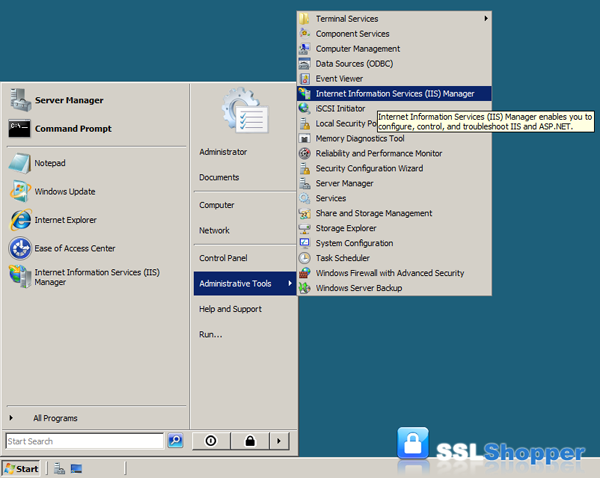
  1. Click on the Start menu, go to Administrative Tools, and click on Internet Information Services (IIS) Manager.
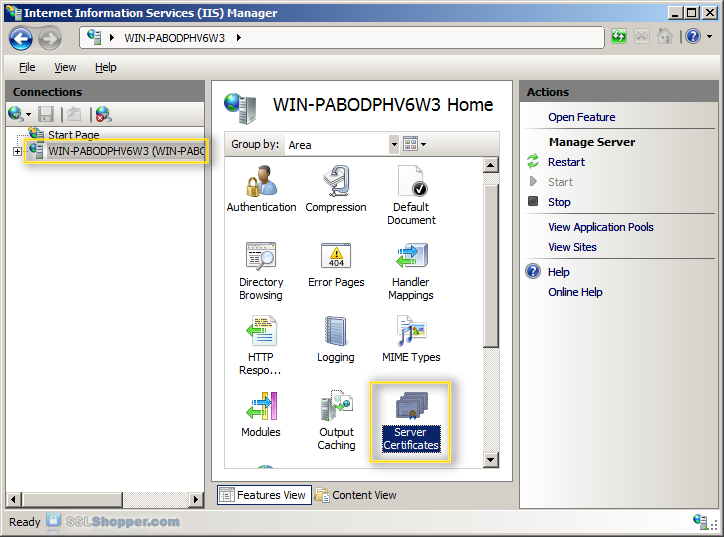
  2. Click on the name of the server in the Connections column on the left. Double-click on Server Certificates.
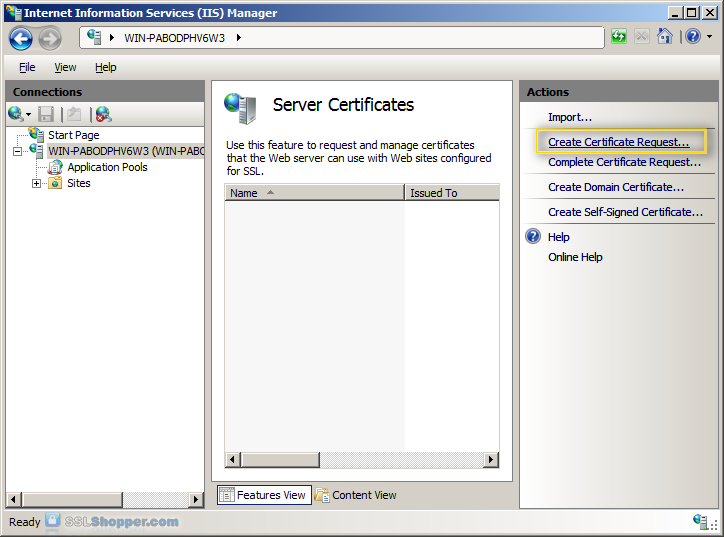
  3. In the Actions column on the right, click on Create Certificate Request...
  4. Enter all of the following information about your company and the domain you are securing and then click Next.
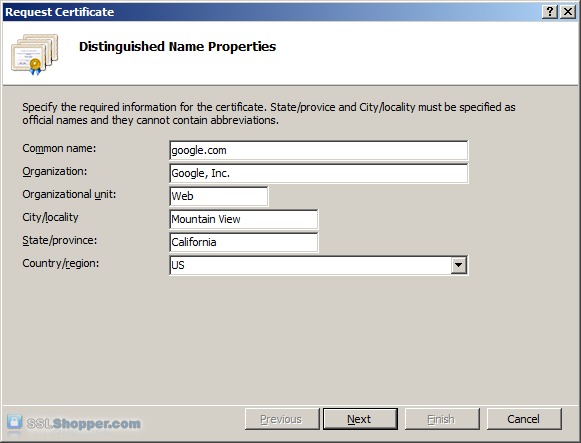
    NameExplanationExamples
    Common NameThe fully qualified domain name (FQDN) of your server. This must match exactly what you type in your web browser or you will receive a name mismatch error.
    *.google.com
    mail.google.com
    OrganizationThe legal name of your organization. This should not be abbreviated and should include suffixes such as Inc, Corp, or LLC.Google Inc.
    Organizational UnitThe division of your organization handling the certificate. (Most CAs don't validate this field)IT
    Web
    City/LocalityThe city where your organization is located.Mountain View
    State/provinceThe state/region where your organization is located. This shouldn't be abbreviated.California
    Country/RegionThe two-letter ISO code for the country where your organization is location.US
    GB
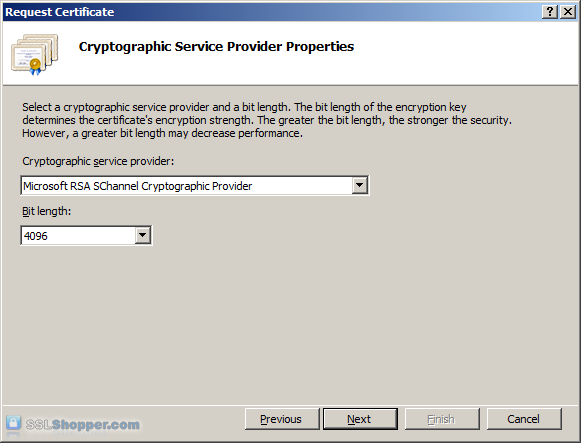
  5. Leave the default Cryptographic Service Provider. Increase the Bit length to 2048 bit or higher. Click Next.
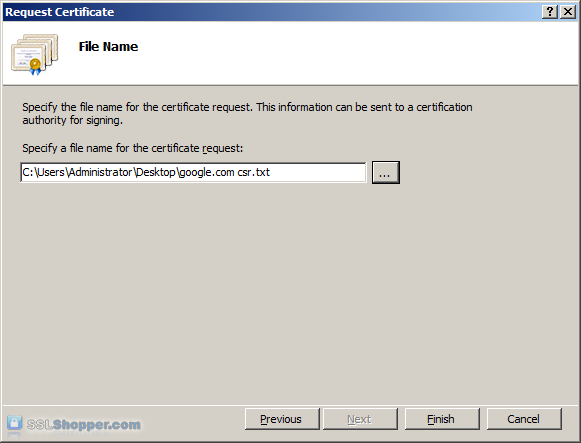
  6. Click the button with the three dots and enter a location and filename where you want to save the CSR file. Click Finish.
Once you have generated a CSR you can use it to order the certificate from a certificate authority. If you don't already have a favorite, you can compare SSL features from each provider using our SSL Wizard or by comparing cheap SSL certificatesWildcard Certificates, or EV certificates. Once you paste the contents of the CSR and complete the ordering process, your order is validated, and you will receive the SSL certificate file.

Install the Certificate

To install your newly acquired SSL certificate in IIS 7, first copy the file somewhere on the server and then follow these instructions:
  1. Click on the Start menu, go to Administrative Tools, and click on Internet Information Services (IIS) Manager.
  2. Click on the name of the server in the Connections column on the left. Double-click on Server Certificates.
  3. In the Actions column on the right, click on Complete Certificate Request...
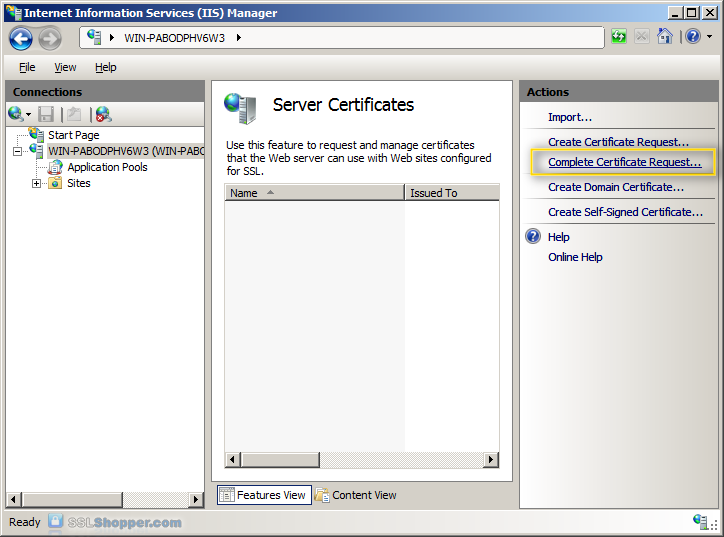
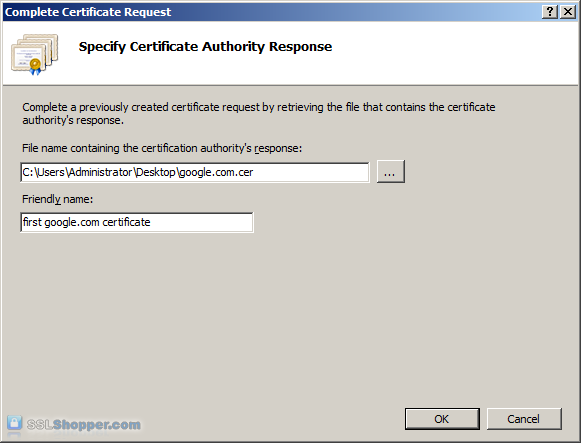
  4. Click the button with the three dots and select the server certificate that you received from the certificate authority. If the certificate doesn't have a .cer file extension, select to view all types. Enter any friendly name you want so you can keep track of the certificate on this server. Click OK.
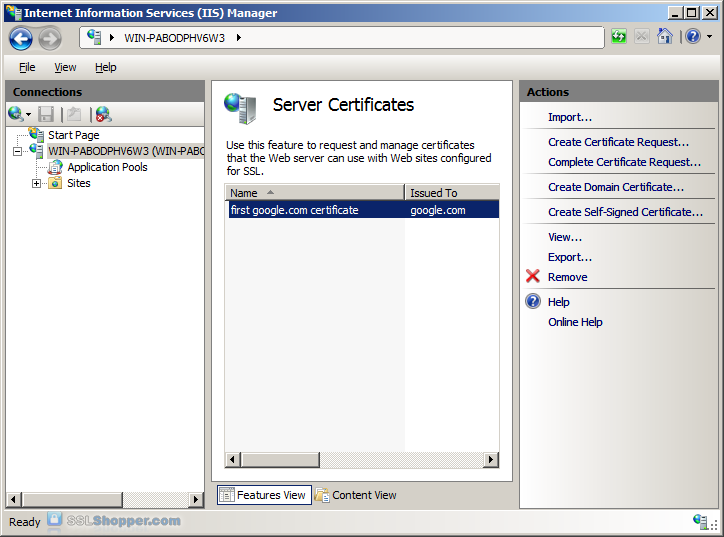
  5. If successful, you will see your newly installed certificate in the list. If you receive an error stating that the request or private key cannot be found, make sure you are using the correct certificate and that you are installing it to the same server that you generated the CSR on. If you are sure of those two things, you may just need to create a new Certificate Request and reissue/replace the certificate. Contact your certificate authority if you have problems with this.
Bind the Certificate to a website

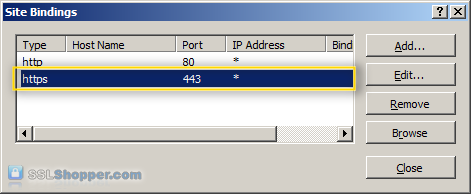
  1. In the Connections column on the left, expand the sites folder and click on the website that you want to bind the certificate to. Click on Bindings...in the right column.
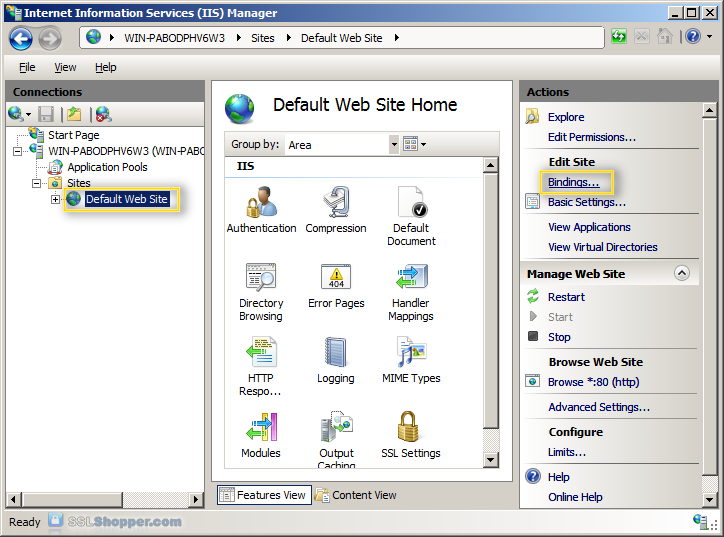
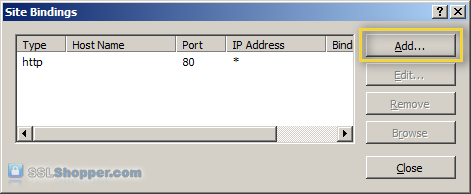
  2. Click on the Add...button.
  3. Change the Type to https and then select the SSL certificate that you just installed. Click OK.
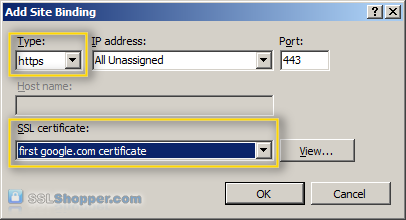
  4. You will now see the binding for port 443 listed. Click Close.
Install any Intermediate Certificates

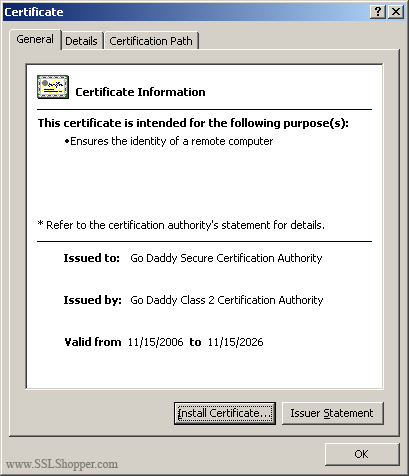
Most SSL providers issue server certificates off of an Intermediate certificate so you will need to install this Intermediate certificate to the server as well or your visitors will receive a Certificate Not Trusted Error. You can install each Intermediate certificate (sometimes there is more than one) using these instructions:
  1. Download the intermediate certificate to a folder on the server.
  2. Double click the certificate to open the certificate details.
  3. At the bottom of the General tab, click the Install Certificate button to start the certificate import wizard. Click Next.
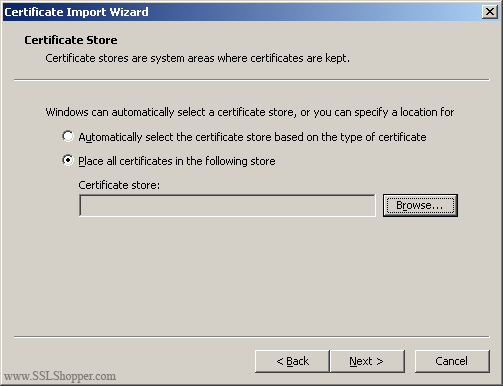
  4. Select Place all certificates in the following store and click Browse.
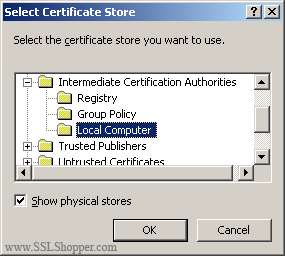
  5. Check the Show physical stores checkbox, then expand the Intermediate Certification Authorities folder, select the Local Computer folder beneath it. Click OK. Click Next, then Finishto finish installing the intermediate certificate.
You may need to restart IIS so that it starts giving out the new certificate. You can verify that the certificate is installed correctly by visiting the site in your web browser using https instead of http or using our SSL Checker.

29 January 2014

How to change physical path of a website in IIS?

In IIS Manager,
Sites | Default Website, right-click, choose Manage Website | Advanced Settings... | Physical Path.

Configuring FastCGI to Host PHP Applications (IIS 7)

http://technet.microsoft.com/en-us/library/dd239230%28v=ws.10%29.aspx

20 out of 33 rated this helpful - Rate this topic
Applies To: Windows 7, Windows Server 2008, Windows Server 2008 R2, Windows Vista
Internet Information Services (IIS) 7.0 adds support for the FastCGI protocol, which improves the performance and reliability of popular application frameworks, such as PHP, hosted on an IIS Web server. FastCGI provides a high-performance alternative to the Common Gateway Interface (CGI) protocol, a standard way of interfacing external applications with Web servers.
IIS 7 for Windows Server® 2008 and Windows Vista® with Service Pack 1 (SP1) now include a built-in FastCGI component. This topic describes how to use the FastCGI module to host PHP applications on IIS 7 in Windows Server 2008 and Windows Vista with SP1.
Important: This topic provides instructions about how to install and how to use the FastCGI component on Windows Server 2008 and Windows Vista with SP1. There is no officially supported FastCGI component for Windows Vista (not SP1). It is strongly recommended that you upgrade to Windows Vista with SP1 if you have to use the FastCGI component on the Windows Vista operating system.
  1. Open Server Manager.
  2. In the right pane, under Roles Summary, click Add Roles.
  3. Use the Add Roles Wizard to select the CGI role service. This enables both the CGI and FastCGI services.
  1. Go to the Windows Start menu, and open the Control Panel.
  2. Double-click Programs and Features.
  3. Click Turn Windows features on or off.
  4. In the Windows Features dialog box, expand Internet Information Services, expand World Wide Web Services, expand Application Development Features, and then select CGI. Click OK.
  5. Install the update for the FastCGI module from one of the following locations. This update fixes several known compatibility issues with popular PHP applications.
It is recommended that you use a non-thread-safe build of PHP with IIS 7 FastCGI. A non-thread-safe build of PHP provides significant performance gains over the standard build by not doing any thread-safety checks. These checks are not necessary because FastCGI guarantees a single-threaded execution environment.
  1. Go to the PHP Web site and download the latest non-thread-safe binaries of PHP.
  2. Unzip the files to a directory of your choice, for example, C:\PHP. Rename the Php.ini-recommended to Php.ini
  3. Open the Php.ini file, and then uncomment and modify the settings as follows:
    1. Set fastcgi.impersonate = 1. FastCGI in IIS supports the ability to impersonate the security tokens of the calling client. This allows IIS to define the security context under which the request runs.
    2. Set cgi.fix_pathinfo=1. cgi.fix_pathinfo provides actual PATH_INFO/PATH_TRANSLATED support for CGI. Previous PHP behavior was to set PATH_TRANSLATED to SCRIPT_FILENAME, and to ignore that setting in PATH_INFO. For more information about PATH_INFO, see the CGI specifications. Setting the PATH_INFO value to 1 will cause PHP CGI to match its paths to the specification.
    3. Set cgi.force_redirect = 0.
    4. Set open_basedir to point to a folder or network path where the content of the Web site is located.
  4. To test whether the PHP installation is successful, type the following at a command prompt:
    C:\PHP>php –info
    If PHP was installed correctly and all its dependencies are available on the computer, then this command will output the current PHP configuration information.
For IIS 7 to host PHP applications, you must add a handler mapping that tells IIS to pass all requests for PHP files to the PHP application framework using the FastCGI protocol.
  1. Open IIS Manager, and then move to the server level.
  2. Double-click Handler Mappings.
  3. In the Actions pane, click Add Module Mapping.
  4. In the Add Module Mapping dialog box, specify the configuration settings as follows:
    • Request path: *.php
    • Module: FastCgiModule
    • Executable: C:\[Path to your PHP installation]\php-cgi.exe
    • Name: PHPviaFastCGI
  5. Click OK.
  6. In the dialog box that asks you to confirm that you want to create a FastCGI application for the executable, click Yes.
  7. To verify that the handler mapping works correctly, create a Phpinfo.php file in the C:\inetpub\wwwroot folder that contains the following:
    <?php phpinfo(); ?>
  8. Open a Web browser, and then navigate to http://localhost/phpinfo.php. If everything was set up correctly, you will see the standard PHP information page.
You can also use Appcmd.exe to add a handler mapping.
  1. To create a FastCGI application process pool, run the following command:
    C:\>%windir%\system32\inetsrv\appcmd set config /section:system.webServer/fastCgi /+[fullPath='c:\{php_folder}\php-cgi.exe']
  2. To create the handler mapping, run the following command:
    C:\>%windir%\system32\inetsrv\appcmd set config /section:system.webServer/handlers /+[name='PHP_via_FastCGI',path='*.php',verb='*',modules='FastCgiModule',scriptProcessor='c:\{php_folder}\php-cgi.exe',resourceType='Either']
    Note: If you are using PHP version 4.x, instead of Php-cgi.exe, you can use Php.exe.
Make sure that FastCGI always recycles Php-cgi.exe processes before native PHP recycling starts. The configuration property instanceMaxRequests controls the FastCGI process-recycling behavior. This property specifies how many requests FastCGI will process before recycling. PHP also has a similar process-recycling functionality that is controlled by the environment variable PHP_FCGI_MAX_REQUESTS. By setting instanceMaxRequests to a value that is smaller than or equal to PHP_FCGI_MAX_REQUESTS, you can make sure that the native PHP process-recycling logic will never start.
To set these configuration properties, use the following commands:
C:\>%windir%\system32\inetsrv\appcmd set config -section:system.webServer/fastCgi /[fullPath='c:\{php_folder}\php-cgi.exe'].instanceMaxRequests:10000
C:\>%windir%\system32\inetsrv\appcmd set config -section:system.webServer/fastCgi /+[fullPath='c:\{php_folder}\php-cgi.exe'].environmentVariables.[name=’PHP_FCGI_MAX_REQUESTS’, value='10000']
Note: If these parameters have not been set, the following default settings will be used (on most PHP builds): instanceMaxRequests = 200, PHP_FCGI_MAX_REQUESTS = 500.

How to Install PHP on IIS 7 for Windows Server 2008

http://www.howtogeek.com/50432/how-to-install-php-on-iis-7-for-windows-server-2008/

One of most popular development platforms on the web is PHP which powers many popular applications and sites such as Facebook, WordPress and Joomla. While most of these systems are ‘designed’ to be used on a Linux system running the Apache Web Server, you can deploy PHP applications via IIS 7 on your Windows Server 2008 system.

Configuring PHP

In order for Windows to run PHP code, the PHP binary files need to be copied to your system. No installation is required, however some configuration must be done in order for it to properly run. The first step is to download the PHP Windows Binaries and extract them (i.e. ‘C:PHP’). For IIS 7, the non thread safe binaries should be used.
image
Copy the ‘php.ini-production’ file from the extracted files paste it into the Windows directory. In the Windows directory, rename this file to ‘php.ini’.

Open the ‘php.ini’ file in Notepad and configure it as needed. Out of the box, the production configuration we copied is preconfigured for what the PHP Team feels is good for a production server. There are a few changes you will need to make to configure PHP for your IIS 7 system:
  • Uncomment and set the key, cgi.force_redirect = 0
  • Uncomment the key, fastcgi.impersonate = 1
  • Uncomment and set the key, extension_dir to the ‘ext’ folder in the path PHP was extracted to (i.e. ‘C:PHPext’).
  • Set the key, date.timezone to the time zone of your server (the URL on the line above this key lists the accepted values).
At this point, your Windows system can run PHP scripts from the command line using the ‘php.exe’ tool.

Configuring IIS 7 to Run FastCGI

Internet Information Services (IIS) 7 includes the FastCGI framework as part of the installation package. To make sure it is enabled in your IIS 7 installation, check the Role Services under Server Manager > Roles > Web Server.

Make sure the “CGI” option is installed under the “Application Development” section. If it is not, enable this feature and update your IIS 7 installation.

Once IIS is set, install the IIS 7 Administration Pack. If you do not use the “Typical” setup then make sure you have the “FastCGI” option set to install. This package installs the FastCGI configuration interface inside the IIS Manager.

Configuring IIS to Run PHP via FastCGI

Once IIS 7 is setup with all the required features, we just need to configure it to run PHP. First, we configure FastCGI to work with PHP under the “FastCGI Settings” option (this feature is installed as part of the IIS 7 Administration Pack).

In the FastCGI Settings screen, add an application.

Set the path to the ‘php-cgi.exe’ executable located in the folder where you extracted the PHP Windows binaries. Additionally, change the “InstanceMaxRequests” to a value higher than the default (i.e. 5000). Under the “EnvironmentVariables” setting, click the ellipses button to configure additional options.

Add a new variable named “PHP_MAX_REQUESTS” and set the value to the same amount as the “InstanceMaxRequests” setting above.

Apply all settings until you get back to the primary IIS Manager screen.
Next, we have to map how PHP scripts are executed by IIS which is configured in “Handler Mappings”.

In the Handler Mappings, add a new module mapping.

Set the module’s request path to PHP files (*.php) with the module interface “FastCgiModule”. Set the executable to the same file as what was configured in the FastCGI settings above. Assign a friendly name to this mapping, such as PHP, and click Ok.

When you get the confirmation prompt, answer “Yes” to confirm you want PHP to run as a FastCGI application.

Apply all your changes, close and restart IIS to make sure the new settings take effect.

Once this is done, there is a Microsoft hotfix available (a link is available in the links section) which addresses some issues with PHP when running under IIS 7. These should be installed on your web server to ensure PHP functions properly through FastCGI.

Testing PHP

At this point, your server is ready to go, but just to be sure we can confirm your PHP setup through IIS pretty easily. Create a text file in the directory ‘C:Inetpubwwwroot’ named ‘phpinfo.php’ which simply contains the line:
<?php phpinfo(); ?>

Finally, browse to the address: ‘http://localhost/phpinfo.php’ on your server and you should see the PHP information page. If the page loads successfully, PHP is now up and running on your machine.

Conclusion

Once you have PHP up and running on your Windows system, you can take advantage of the multitude of PHP based applications available as well as develop and deploy your own.

Links

Download PHP Windows Binaries (non thread safe)
Download IIS 7 Administration Pack
Download PHP Hotfix for IIS 7 FastCGI (x86 / x64)

Install and Configure MySQL for PHP Applications on IIS 7

http://www.iis.net/learn/application-frameworks/install-and-configure-php-on-iis/install-and-configure-mysql-for-php-applications-on-iis-7-and-above

Introduction

While Microsoft® SQL Server® 2008 is the recommended database to use when hosting PHP applications on an Internet Information Services 7 (IIS 7) and above Web server, you can also use MySQL as the database. Currently, many popular PHP applications use MySQL Server for data storage. Using MySQL requires hosting providers to include MySQL database support with the hosting packages.
MySQL cannot currently be installed with the Microsoft® Web Platform Installer (Web PI). This article provides guidance for installing MySQL manually.

Install MySQL Server on Windows Server 2008 or Windows Server 2008 R2

It is recommended that you install MySQL on a dedicated server rather than installing MySQL on the same server that is running IIS. The separation of database server and Web server makes overall installation more secure and manageable and avoids resource contentions between the database and Web server processes.
1. Download MySQL Community Server.
a. We recommend downloading Windows® Installer.
2. Start Windows Installer, or extract all the files from the archive, and then start Setup.exe.
3. You can use a Typical Setup or customize the installation to suit your needs.
4. Once the installation wizard is completed, it is recommended that you leave the Configure the MySQL Server now check box selected.

Configure a MySQL Instance

1. Run the MySQL Server Instance Configuration Wizard, and then choose the configurations options that most closely match your environment.
For more information, see the Server Instance Configuration Wizard.
Best practice recommendations are as follows:
a. Click Next in the Instance Configuration Wizard.
b. Select Detailed Configuration, and then click Next.
c. Select a server type that best suits your environment. It is recommended to set up a separate MySQL server; when prompted to select a server type, select Dedicated MySQL Server Machine, and then click Next.
d. Select a database option, and then click Next.
Select either the Multifunctional Database or Transactional Database Only options if you are using the InnoDB storage engine or the high-speed MyISAM storage engine (for example, if the Web applications on your server require multi-statement transactions, advanced isolation levels and row-level locking, foreign key constraints, or atomic, consistent, isolated, and durable [ACID] features). These options provides fully ACID transactional capabilities, but at the cost of more aggressive usage of disk space and memory.
Otherwise, use the Non-Transactional Database Only option, which is optimized for high-performance SELECT operations. It has low overhead, in terms of memory usage and disk utilization, but at the cost of not supporting transactions.
e. Choose the option that sets the number of concurrent connections you need.
Note: Connections require memory; if the number you choose is too big, your server may not have enough memory.
f. You may adjust networking settings to suit your environment or accept defaults, and then click Next.
g. Select the default character set that best suits you, and then click Next.
h. We recommend enabling both Windows options here. Select both check boxes, and then click Next.
i. Type the password you want to use for the root account, and then click Next.
j. Click Execute to apply your settings.
k. Click Finish to close the wizard.
2. For PHP to work with MySQL, it is necessary to perform the following modifications to the Php.ini file:
a. Confirm that the extension_dir points to the folder where all PHP loadable extensions are located, frequently in the Ext folder (for example, extension_dir=”.\ext”).
b. Enable dynamic extension for MySQL by uncommenting the corresponding line for the MySQL extension: extension=php_mysql.dll
c. Save and close the Php.ini file.

Secure MySQL

1. Remove the anonymous database account (if it exists). Open the MySQL command prompt by clicking Start -> All Programs -> MySQL -> MySQL Server 5.1 -> MySQL Command Line Client:
2. Enter the password for the root account.
3. Once logged on to MySQL, use the following sequence of commands:
mysql> use mysql;
Database changed
mysql> DELETE FROM user WHERE user = '';
Query OK, 2 rows affected (0.03 sec)
mysql> FLUSH PRIVILEGES;
Query OK, 0 rows affected (0.05 sec)
4. Next, restrict the root account to log on only from localhost. Open a MySQL command prompt, and use the following sequence of commands:
mysql> use mysql;
Database changed
mysql> DELETE FROM user WHERE user = 'root' AND host = '%';
Query OK, 2 rows affected (0.03 sec)
mysql> FLUSH PRIVILEGES;
Query OK, 0 rows affected (0.05 sec)
5. Change the name of the root user with the following sequence of commands from the command prompt:
mysql> USE mysql;
Database changed
mysql> UPDATE user SET user='johndoe' WHERE user='root';
Query OK, 1 row affected (0.19 sec)
Rows matched: 1 Changed: 1 Warnings: 0
mysql> FLUSH PRIVILEGES;
Query OK, 0 rows affected (0.23 sec)

Provision the User and Database

1. To provision a new user, type the following command from the MySQL command prompt:
mysql>CREATE USER some_username IDENTIFIED BY some_password’;
Query OK, 0 rows affected (0.00 sec)
2. The newly created user does not have any privileges on the MySQL server by default. To create a new database, type the following command:
mysql>CREATE DATABASE IF NOT EXISTS some_database_name;
Query OK, 1 row affected (0.00 sec)
3. To grant access to this database for a particular user, type the following command:
mysql> GRANT ALTER,
-> ALTER ROUTINE,
-> CREATE,
-> CREATE ROUTINE,
-> CREATE TEMPORARY TABLES,
-> CREATE VIEW,
-> DELETE,
-> DROP,
-> EXECUTE,
-> INDEX,
-> INSERT,
-> LOCK TABLES,
-> SELECT,
-> UPDATE,
-> SHOW VIEW
ON some_database_name.* TO 'some_username';

Configure PHP to Access MySQL

1. Open the c:\php\php.ini file with your favorite text editor.
2. Uncomment the following lines by removing the semicolon:
extension=php_mysqli.dll
extension=php_mbstring.dll
extension=php_mcrypt.dll
3. Restart the IIS service by clicking on Start, selecting the Search Field, typing iisreset, and then pressing ENTER.
4. If all went well, you should see the mysqli section on the PHP information page created earlier (http://localhost/phpinfo.php).

Figure 1: The mysqli section on the PHP information page