13 January 2012

如何远程安装Windows软件[译文135]

http://louishan.com/articles/how-to-remote-install-windows-software.html


以前我总是不得不直接在每台电脑上安装应用程序,至少要说这是很耗费时间的工作。后来我开始使用 Windows 2000 下的 Dameware 帮助我远程安装应用程序,软件不仅价格昂贵而且还难以使用。
        然后随着 Windows XP 专业版的发布,系统自带了远程桌面功能,我可以远程登陆每台机器来安装 Windows 程序,不过这仍然很耗费时间。现在我可以自动向电脑分发应用程序,还可以向用户分发应用程序,这样不管用户是不是在我的域中,都可以获取到需要的软件。
        下面我将做一个 Windows Microsoft Office 软件的远程安装,告诉你怎么进行。首先你要安装的软件必须有一个 MSI 文件进行部署,MSI 文件简单说就是一个微软安装工具。如果没有的话有很多方法可以创建。当获得 MSI 文件之后,我们可以创建符合要求模板选择需要的选项,这可以帮助我们设定安装过程自动进行。
        当你有成千上万的电脑需要处理,每天电脑有成百上千的需求,这样做是非常必要的。现在我们可以用 OU 或者说叫做组织单元部署应用程序。
首先我们打开活动目录用户和计算机帐户。
选择你想要向谁部署应用程序,右击那个 OU 选择属性。
点击窗口右上角的组策略标签页,然后需要点击打开进入管理界面。
不管在 OU 中你是点击的计算机还是用户,都会得到响应。也就是说他们会让软件部署到自身。
接下来回到下面的屏幕。
这个是组策略管理界面。两个步骤之前你选择的 OU 会在左侧高亮显示,分发给它的任何策略会在右侧面板显示。你可以看到我有一个 GPO(组策略对象) 叫做 OfcStd,是我的 Office Standard 缩写。
这个组策略分发 Office 2003 标准版到这个 OU 里面的所有计算机。现在让我们从头开始看看是怎么工作的。
右击这个 OU 并选择在这里创建和连接一个GPO。
这会引导你到达一个为 GPO 命名的屏幕,如下所示。
为你的 GPO 起一个易于理解的名字.我将自己的命名为测试软件安装。这将会带我们回到同一个屏幕,增加了新添加的空 GPO。你需要右键点击然后选择编辑。
点击编辑之后会打开组策略对象编辑器。根据你是要将软件分发给计算机还是用户(计算机总是会安装到同一台机器,用户会跟随其正在使用的机器),展开 计算机配置→ 软件设置 或者 用户配置→软件设置,如下所示。
点击软件设置文件夹下面的软件安装项之后会看到如下。
右击右侧面板,如上图所示选择新建→软件包。
        选择 Office 2003 便准版安装文件 STD11.msi,就搞定了。就是这么简单!你已经学会了部署第一个软件安装包,试想如果使用合理这将节省多少时间!
        如果你上面选择的是用户配置,你可以登陆其中的一个用户进行测试;如果你选择的计算机配置,需要使用 OU 中的一台计算机登录。有时候需要重启计算机或者极端情况下重启两次才能看到程序安装。当你成功之后,登入系统直接就可以看到一个界面,告知你安装部署好的应用程序。是不是很酷?

How To Do A Remote Install Of Windows Software

http://www.makeuseof.com/tag/remote-install-windows-software/


I have recently covered how to create your own Windows domain and how to push out group policy to your domain computers. Today we will visit how to remote install Windows software on your domain computers using group policy.
In the past I have had to install applications directly on each user’s computer. This was time consuming to say the least. Then I started using Dameware for Windows 2000 that helped me remotely install applications. It was far from free and was difficult to use.
Then Remote Desktop came around with Windows XP Professional and I was able to remotely log into each machine and install the  Windows applications. This was still time consuming. Now I am able to assign applications to computers automatically. I can also assign applications to users so no matter where they are on my domain they will have the software they need.

I do a remote install our Windows Microsoft Office software, and I will show you how. The application that you want to install will need to have a MSI file to deploy it. An MSI file is simply a Microsoft installer. If you do not have one there are methods to creating one like this. Once you have the MSI file we can create answer templates to choose the options we want to pick. This helps us customize the installations while keeping it automated.
When you are dealing with thousands of computers with hundreds of different requirements this is a necessity. Now we can use our OUs or organizational units to deploy applications.
Ads by Google

Download Google Chrome www.google.com/chrome
Searching is fast and easy with Google's web browser.


Best 10 Web Hosting 2011 www.Consumer-Rankings.com/Hosting
Compare and Buy Top10 Web Hosting ! Free Setup & Domain, from $4.95/m


Web Hosting Service Provider www.hostway.com
100GB Web Space Unlimited Monthly Traffic


Simple Project Management www.launchcycle.com
Manage tasks, teams and projects simply with LaunchCycle.

Let’s open up our Active Directory Users and Accounts.
remote install Windows software
Pick who you want to deploy the applications to.  Right click on that OU and choose properties.
remote install Windows software
Then click on the group policy tab at the top right of the window and then we need to clickopen to get to the management interface.
remote install Windows software
Whatever is in the OU you choose, computers or users, they will all be affected. In this situation it means they will have the software deployed to it.
We will next be taken to this screen:
active directory group policy
This is called the group policy management screen.  The OU you selected two steps back will be highlighted on the left hand side and any policies assigned to it will appear in the right pane. You can see I have a GPO called OfcStd, which is my shorthand for Office Standard.
This group policy deploys Office 2003 standard to the machines in this OU. Now let’s see how to do it from scratch.
Right click on the OU and choose create and link a GPO here.
active directory group policy
That will take you to a screen that will ask you to name your GPO. It looks like this:
active directory group policy
Name your GPO something that is helpful in understanding what it does. I named mine test software installation. That will take us to the same screen with the new blank GPO added. You will want to right click on it and choose edit like so:
active directory tutorial
After clicking edit we will be in the group policy object editor. Depending on if you want the software assigned to the computer or the user (computer will always install to the same machine and user will follow the user to whatever machine they are using). Expand eithercomputer configuration ““> software settings or user configuration software settings like you see below:
active directory tutorial
After clicking on the software installation item below the software settings folder you will see this:
active directory tutorial
Right click on the right pane and choose new ““> package as shown above.
soft10
I chose Office 2003 standard’s installer called STD11.msi. and I am done. That is really it! You have deployed your first software package. Imagine how much time this can save if used properly!
Now you can test it by logging in as a user, in that OU, if you choose the user configuration above. If you choose the computer configuration you would use a computer in that OU. Sometimes it takes a reboot and in extreme cases two to see the installation.  When you are successful you will see a screen directly after logging in telling you that it is installing your applications. How cool is that?
How do you remote install Windows software? Do you have any tips or tricks for us?

12 January 2012

Remove XP Antivirus 2012 (Uninstall Guide)

http://www.bleepingcomputer.com/virus-removal/remove-xp-antivirus-2012


Remove XP Antivirus 2012 (Uninstall Guide)

Posted by  on December 5, 2011 @ 09:23 PM · Views: 67,695


What this infection does:
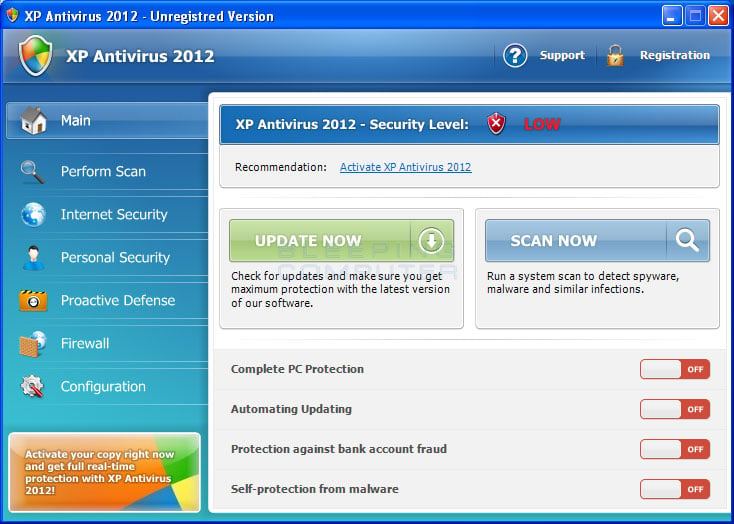
XP Antivirus 2012 is a variant of the 2012 name-changing rogue program that changes its name randomly depending on the version of Windows it is installed on. This guide will cover the variant of the 2012 name changing rogue called XP Antivirus 2012. This rogue is promoted in two ways. The first is through the use of fake online antivirus scanners that state that your computer is infected and then prompt you to download a file that will install the infection. The other method are hacked web sites that attempt to exploit vulnerabilities in programs that you are running on your computer to install the infection without your knowledge or permission.
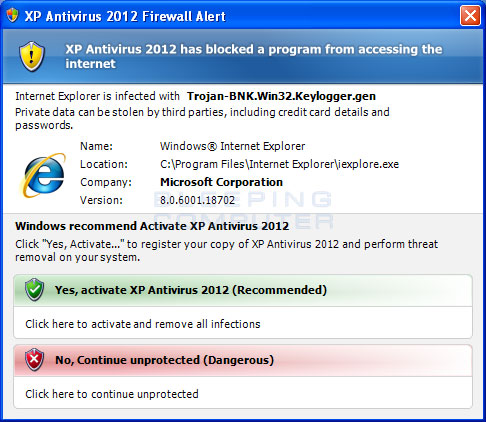
When installed, this rogue pretends to be a security update for Windows installed via Automatic Updates. It will then install itself as a single executable that has a random name consisting of three characters, such as nmi.exe, that uses very aggressive techniques to make it so that you cannot remove it. First, it makes it so that if you launch any executable it will instead start the XP Antivirus 2012 rogue and state that the executable you initially wanted to run is infected. It will also modify certain keys so that when you launch FireFox or Internet Explorer from the Window Start Menu it will launch the rogue instead and display a fake firewall warning stating that the program is infected.

XP Antivirus 2012 screen shot 
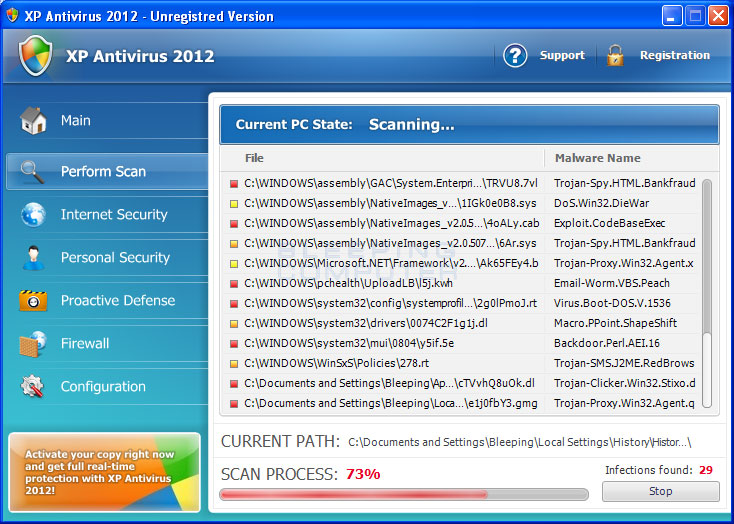
XP Antivirus 2012 screen shot
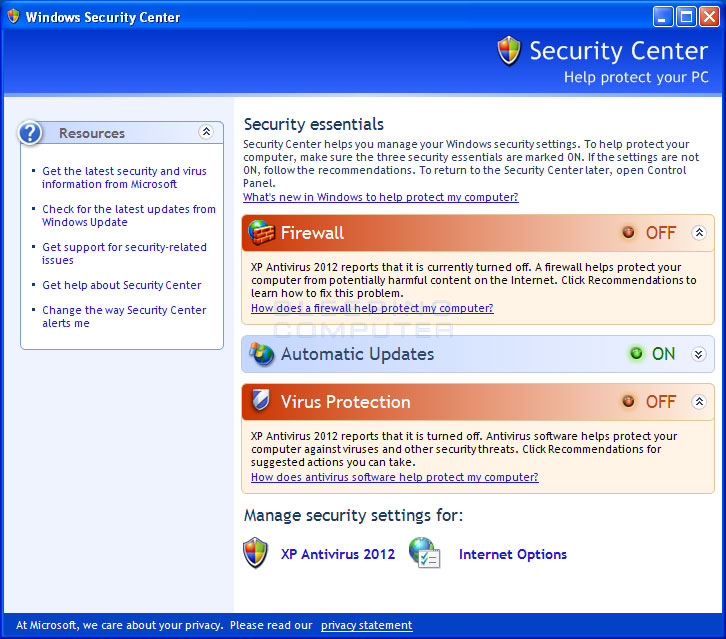
For more screen shots of this infection click on the image above.
There are a total of 4 images you can view.

Once started, the rogue itself, like all other rogues, will scan your computer and state that there are numerous infections on it. If you attempt to use the program to remove any of these infections, though, it will state that you need to purchase the program first. In reality, though, the infections that the rogues states are on your computer are all legitimate files that if deleted could cause Windows to not operate correctly. Therefore, please do not manually delete any files based upon the results from this rogue's scan.
While running, XP Antivirus 2012 will also display fake security alerts on the infected computer. The text of some of these alerts are:
XP Antivirus 2012 Alert
System Integrity Check
Warning! Sensitive data may be sent over your internet connection right now!
Threat: Trojan-PSW.Win32.Antigen.A

XP Antivirus 2012 Alert
Critical System Alert
Unknown software is trying to take control over your system!
Threat: Macro.Visio.Radiant 

XP Antivirus 2012 Firewall Alert

XP Antivirus 2012 has blocked a program from accessing the internet
Internet Explorer is infected with Trojan-BNK.Win32.Keylogger.gen
Private data can be stolen by third parties, including credit card details and passwords.

Malware Intrusion
Sensitive areas of your system were found to be under attack. Spy software attack or virus infection possible. Prevent further damage or your private data will get stolen. Run an anti-spyware scan now. Click here to start.

System danger!Your system security is in danger. Privacy threats detected. Spyware, keyloggers or Trojans may be working the background right now. Perform an in-depth scan and removal now, click here.
System Hijack!System security threat was detected. Viruses and/or spyware may be damaging your system now. Prevent infection and data loss or stealing by running a free security scan.
Privacy threat!Spyware intrusion detected. Your system is infected. System integrity is at risk. Private data can be stolen by third parties, including credit card details and passwords. Click here to perform a security repair.
Stealth intrusion!Infection detected in the background. Your computer is now attacked by spyware and rogue software. Eliminate the infection safely, perform a security scan and deletion now.
XP Antivirus 2012 Alert
Security Hole Detected!
A program is trying to exploit Windows security holes! Passwords and sensitive data may be stolen. Do you want to block this attack?
Just like the scan results, these security warnings and alerts are all fake and should be ignored.
While running, XP Antivirus 2012 will also hijack Internet Explorer and Firefox so that you cannot visit certain sites. It does this so that you cannot receive help or information at sites like BleepingComputer.com on how to remove this infection. When you attempt to visit these sites you will instead be shown a fake alert stating that the site you are visiting is dangerous and that the rogue is blocking it for your protection. The message that you will see is:
XP Antivirus 2012 Alert
Internet Explorer alert. Visiting this site may pose a security threat to your system!

Possible reasons include:
- Dangerous code found in this site's pages which installed unwanted software into your system.
- Suspicious and potentially unsafe network activity detected.
- Spyware infections in your system
- Complaints from other users about this site.
- Port and system scans performed by the site being visited.

Things you can do:
- Get a copy of XP Antivirus 2012 to safeguard your PC while surfing the web (RECOMMENDED)
- Run a spyware, virus and malware scan
- Continue surfing without any security measures (DANGEROUS)
Just like the fake security alerts, the browser hijack is just another attempt to make you think that your computer has a security problem so that you will then purchase the program.
Without a doubt, this rogue is designed to scam you out of your money by hijacking your computer and trying to trick you into thinking you are infected. Therefore, please do not purchase this program , and if you have, please contact your credit card company and dispute the charges stating that the program is a computer infection. Finally, to remove XP Antivirus 2012 please use the guide below, which only contains programs that are free to use.

Threat Classification:

Advanced information:
View XP Antivirus 2012 files.
View XP Antivirus 2012 Registry Information.

Tools Needed for this fix:

Guide Updates:
12/05/11 - Initial guide creation.


Automated Removal Instructions for XP Antivirus 2012 using Malwarebytes' Anti-Malware:

  1. Print out these instructions as we will need to close every window that is open later in the fix.
  2. It is possible that the infection you are trying to remove will not allow you to download files on the infected computer. If this is the case, then you will need to download the files requested in this guide on another computer and then transfer them to the infected computer. You can transfer the files via a CD/DVD, external drive, or USB flash drive.
  3. This infection changes settings on your computer so that when you launch an executable, a file ending with .exe, it will instead launch the infection rather than the desired program. To fix this we must first download a Registry file that will fix these changes. From a clean computer, please download the following file and save it to a removable media such as a CD/DVD, external Drive, or USB flash drive.

    FixNCR.reg (http://download.bleepingcomputer.com/reg/FixNCR.reg)

    Once that file is downloaded and saved on a removable devices, insert the removable device into the infected computer and open the folder the drive letter associated with it. You should now see the FixNCR.reg file that you had downloaded onto it. Double-click on the FixNCR.reg file to fix the Registry on your infected computer. You should now be able to run your normal executable programs and can proceed to the next step.

    If you do not have any removable media or another clean computer that you can download the FixNCR.reg file onto, you can try and download it to your infected computer using another method. On the infected computer, right click on the Internet Explorer's icon, or any other browser's icon, and select Run As or Run as Administrator. If you are using Windows XP, you will be prompted to select a user and enter its password. It is suggested that you attempt to login as the Administrator user. For Windows 7 or Windows Vista, you will be prompted to enter your Administrator account password.

    Once you enter the password, your browser will start and you can download the above FixNCR.reg file. When saving it, make sure you save it to a folder that can be accessed by your normal account. Remember, that you will be launching the browser as another user, so if you save it to a My Documents folder, it will not be your normal My Documents folder that it is downloaded into. Instead it will be the My Documents folder that belongs to the user you ran the browser as. Once the download has finished, close your browser and find the FixNCR.reg file that you downloaded. Now double-click on it and allow the data to be merged. You should now be able to run your normal executable programs and can proceed to the next step.
  4. Now we must first end the processes that belong to XP Antivirus 2012 and clean up some Registry settings so they do not interfere with the cleaning procedure. To do this, please download RKill to your desktop from the following link.

    RKill Download Link - (Download page will open in a new tab or browser window.)

    When at the download page, click on the Download Now button labeled iExplore.exe download link . When you are prompted where to save it, please save it on your desktop.
  5. Once it is downloaded, double-click on the iExplore.exe icon in order to automatically attempt to stop any processes associated with XP Antivirus 2012 and other Rogue programs. Please be patient while the program looks for various malware programs and ends them. When it has finished, the black window will automatically close and you can continue with the next step. If you get a message that RKill is an infection, do not be concerned. This message is just a fake warning given by XP Antivirus 2012 when it terminates programs that may potentially remove it. If you run into these infections warnings that close RKill, a trick is to leave the warning on the screen and then run RKill again. By not closing the warning, this typically will allow you to bypass the malware trying to protect itself so that rkill can terminate XP Antivirus 2012 . So, please try running RKill until the malware is no longer running. You will then be able to proceed with the rest of the guide. If you continue having problems running RKill, you can download the other renamed versions of RKill from therkill download page. All of the files are renamed copies of RKill, which you can try instead. Please note that the download page will open in a new browser window or tab.

    Do not reboot your computer after running RKill as the malware programs will start again.
  6. There have been reports of this infection being bundled with the TDSS rootkit infection. To be safe you should also run a program that can be used to scan for this infection. Please follow the steps in the following guide:
    How to remove Google Redirects or the TDSS, TDL3, or Alureon rootkit using TDSSKiller
    If after running TDSSKiller, you are still unable to update Malwarebytes' Anti-malware or continue to have Google search result redirects, then you should post a virus removal request using the steps in the following topic rather than continuing with this guide:
    Preparation Guide For Use Before Using Malware Removal Tools and Requesting Help Topic
    If TDSSKiller requires you to reboot, please allow it to do so. After you reboot, reboot back into Safe Mode with Networking again.
  7. Download Malwarebytes' Anti-Malware, or MBAM, from the following location and save it to your desktop:

    Malwarebytes' Anti-Malware Download Link (Download page will open in a new window)
  8. Once downloaded, close all programs and Windows on your computer, including this one.
  9. Double-click on the icon on your desktop named mbam-setup.exe. This will start the installation of MBAM onto your computer.
  10. When the installation begins, keep following the prompts in order to continue with the installation process. Do not make any changes to default settings and when the program has finished installing, make sure you leave both the Update Malwarebytes' Anti-Malware and Launch Malwarebytes' Anti-Malware checked. Then click on the Finish button.
  11. MBAM will now automatically start and you will see a message stating that you should update the program before performing a scan. As MBAM will automatically update itself after the install, you can press the OK button to close that box and you will now be at the main program as shown below.


    MalwareBytes Anti-Malware Screen
  12. On the Scanner tab, make sure the the Perform full scan option is selected and then click on the Scan button to start scanning your computer for XP Antivirus 2012 related files.
  13. MBAM will now start scanning your computer for malware. This process can take quite a while, so we suggest you go and do something else and periodically check on the status of the scan. When MBAM is scanning it will look like the image below.


    MalwareBytes Anti-Malware Scanning Screen
  14. When the scan is finished a message box will appear as shown in the image below.


    MalwareBytes Anti-Malware Scan Finished Screen
    You should click on the OK button to close the message box and continue with the XP Antivirus 2012 removal process.
  15. You will now be back at the main Scanner screen. At this point you should click on the Show Results button.
  16. A screen displaying all the malware that the program found will be shown as seen in the image below. Please note that the infections found may be different than what is shown in the image.


    MalwareBytes Scan Results

    You should now click on the Remove Selected button to remove all the listed malware. MBAM will now delete all of the files and registry keys and add them to the programs quarantine. When removing the files, MBAM may require a reboot in order to remove some of them. If it displays a message stating that it needs to reboot, please allow it to do so. Once your computer has rebooted, and you are logged in, please continue with the rest of the steps.
  17. When MBAM has finished removing the malware, it will open the scan log and display it in Notepad. Review the log as desired, and then close the Notepad window.
  18. You can now exit the MBAM program.
  19. As many rogues and other malware are installed through vulnerabilities found in out-dated and insecure programs, it is strongly suggested that you use Secunia PSI to scan for vulnerable programs on your computer. A tutorial on how to use Secunia PSI to scan for vulnerable programs can be found here:

    How to detect vulnerable and out-dated programs using Secunia Personal Software Inspector
Your computer should now be free of the XP Antivirus 2012 program. If your current anti-virus solution let this infection through, you may want to considerpurchasing the PRO version of Malwarebytes' Anti-Malware to protect against these types of threats in the future.
If you are still having problems with your computer after completing these instructions, then please follow the steps outlined in the topic linked below:


Associated XP Antivirus 2012 Files:
%CommonAppData%\<random characters>
%LocalAppData%\<random characters>
%LocalAppData%\<random 3 chars>.exe
%Temp%\<random characters>
%UserProfile%\Templates\<random characters>File Location Notes:
%UserProfile% refers to the current user's profile folder. By default, this is C:\Documents and Settings\<Current User> for Windows 2000/XP, C:\Users\<Current User> for Windows Vista/7, and c:\winnt\profiles\<Current User> for Windows NT.
%Temp% refers to the Windows Temp folder. By default, this is C:\Windows\Temp for Windows 95/98/ME, C:\DOCUMENTS AND SETTINGS\<Current User>\LOCAL SETTINGS\Temp for Windows 2000/XP, and C:\Users\<Current User>\AppData\Local\Temp for Windows Vista and Windows 7.
%LocalAppData% refers to the current users Local settings Application Data folder. By default, this is C:\Documents and Settings\<Current User>\Local Settings\Application Data for Windows 2000/XP. For Windows Vista and Windows 7 it is C:\Users\<Current User>\AppData\Local.
%CommonAppData% refers to the Application Data folder in the All Users profile. For Windows XP, Vista, NT, 2000 and 2003 it refers to C:\Documents and Settings\All Users\Application Data\, and for Windows Vista/7 it is C:\ProgramData.

Associated XP Antivirus 2012 Windows Registry Information:
HKEY_CURRENT_USER\Software\Classes\.exe "(Default)" = 'ah'
HKEY_CURRENT_USER\Software\Classes\.exe\shell\open\command "(Default)" = "%LocalAppData%\<random 3 chars>.exe" -a "%1" %*
HKEY_CLASSES_ROOT\ah
HKEY_CURRENT_USER\Software\Classes\ah "(Default)" = 'Application'
HKEY_CURRENT_USER\Software\Classes\ah "Content Type" = 'application/x-msdownload'
HKEY_CURRENT_USER\Software\Classes\ah\DefaultIcon "(Default)" = '%1'
HKEY_CURRENT_USER\Software\Classes\ah\shell\open\command "(Default)" = "%LocalAppData%\<random 3 chars>.exe" -a "%1" %*
HKEY_CLASSES_ROOT\.exe\shell\open\command "(Default)" = "%LocalAppData%\<random 3 chars>.exe" -a "%1" %*
HKEY_CLASSES_ROOT\ah\shell\open\command "(Default)" = "%LocalAppData%\<random 3 chars>.exe" -a "%1" %*
HKEY_CLASSES_ROOT\ah\shell\open\command "IsolatedCommand"